
Introduction
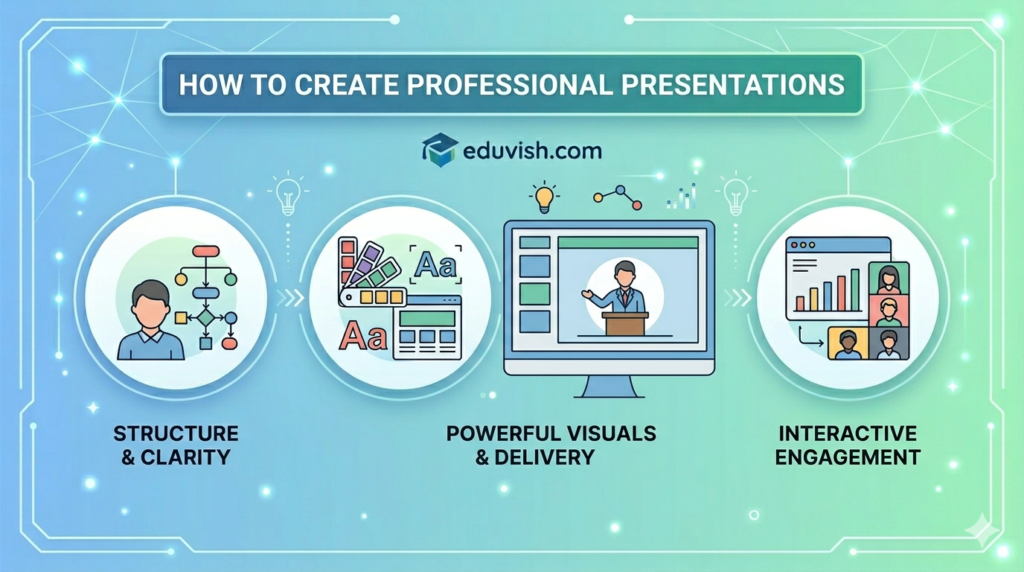
Presentations are no longer just slides with text — they are powerful tools for storytelling, persuasion, and education. In 2026, digital tools have transformed how students, professionals, and educators design and deliver presentations.
A professional presentation today must be:
- Visually appealing
- Easy to understand
- Interactive and engaging
- Accessible across devices
This guide explores how to create professional presentations using digital tools, with practical steps, examples, and strategies.
Why Professional Presentations Matter
- Academic Success: Students present research, projects, and case studies.
- Career Growth: Professionals pitch ideas, report results, and lead meetings.
- Global Collaboration: Teams across countries rely on digital presentations for clarity.
- Personal Branding: A polished presentation builds credibility and confidence.
Best Digital Tools for Presentations
| Tool | Best For | Key Features |
|---|---|---|
| Microsoft PowerPoint | Enterprise & education | Deep Office integration, animations, templates |
| Google Slides | Collaboration | Cloud‑based, real‑time editing, easy sharing |
| Canva | Design‑focused decks | AI templates, infographics, cinematic visuals |
| Visme | Branded reports | Interactive charts, analytics, polished layouts |
| Prezi | Storytelling | Non‑linear, zoom‑based presentations |
| Beautiful.ai | Auto‑design | AI layouts, consistent branding |
Steps to Create Professional Presentations
1. Define Your Objective
- Know your audience and purpose (pitch, lecture, report).
- Keep key takeaways clear.
2. Structure Your Content
- Use the rule of three: Introduction, Body, Conclusion.
- Break complex data into digestible sections.
3. Use Visual Storytelling
- Replace text with charts, infographics, and icons.
- Use high‑quality images and consistent color schemes.
4. Leverage Digital Tools
- Use Canva for design templates.
- Add interactive elements like clickable links or embedded videos.
5. Practice Delivery
- Rehearse with slides to ensure smooth flow.
- Use speaker notes for guidance.